Export iPhoto Events, keywords and ratings
Importing an old iPhoto library's files into another app keeps the photos but loses the Events, keywords, star ratings, titles and captions you spent years adding. Library Rescue reads them from the library's database and writes them out as folders and XMP sidecars.
Drop your iPhoto Library folder here
Read in this browser tab. Nothing is uploaded.
On a Mac? Drag the library here from Finder (Pictures folder).
Free: open and browse any library, and export up to 200 photos per library. Nothing is uploaded.
How to keep Events, keywords and ratings
Open the original library
Use the library itself, not photos already imported elsewhere: the Events, keywords and ratings live in its database. Drag it onto the box above or click “Choose library folder”.
Check what was found
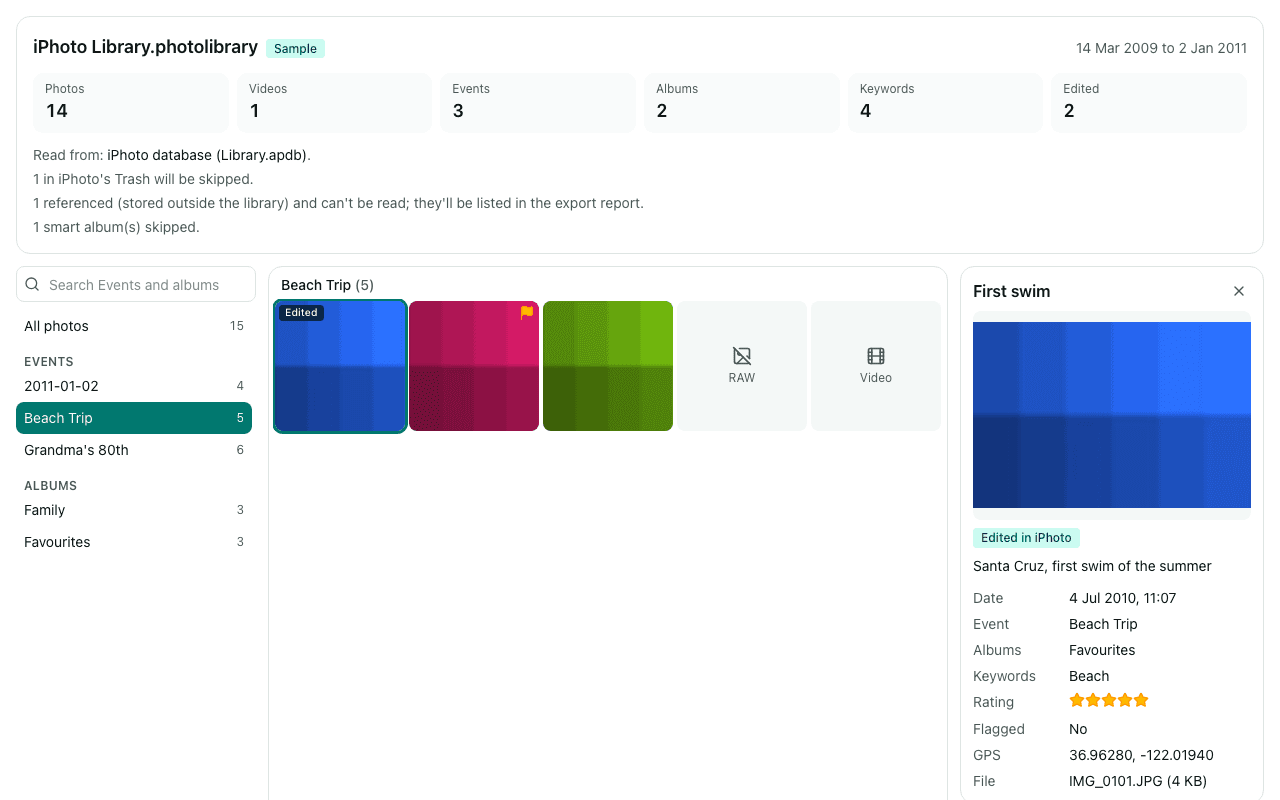
The summary lists Events, albums, keywords and edited photos, and the detail panel shows each photo's title, caption, rating and keywords, so you can see your metadata is there before exporting.
Export with sidecars
Events become folders like “2009-03-14 Grandma's 80th”. Each photo gets an .xmp sidecar with its title, caption, keywords (plus “Flagged” if you flagged it), star rating, date and GPS, and the Event and album names as hierarchical keywords.
digiKam reads sidecars named like IMG_0001.JPG.xmp once reading from sidecars is turned on in its metadata settings. Lightroom Classic only uses sidecars for RAW files and expects them named IMG_0001.xmp; for JPEGs it reads metadata inside the file, which Library Rescue doesn't write.
What you'll see
Questions
Why did my Events disappear when I imported into Photos?
File > Import in Photos brings in the image files only. Events, albums, keywords, ratings and captions live in the iPhoto library's database, which Import doesn't read. Library Rescue reads that database, so the Events come back as folders.
How do I get the keywords into digiKam?
Add the export folder as a collection in digiKam, and turn on reading metadata from sidecar files in its metadata settings. Keywords appear as tags, and the Event and album names appear under “iPhoto Event” and “iPhoto Album” tags.
Can the metadata be written into the photo files themselves?
Library Rescue writes sidecars only and never changes your photos. If an app needs the metadata inside the files, ExifTool can copy it from the sidecars, for example: exiftool -tagsfromfile %d%f.%e.xmp -r -ext jpg <export folder>. Try it on a copy first.
What doesn't come across?
Smart albums (their rules can't be exported; the summary counts them), face names, Places names, and books, cards and slideshows. Edited versions aren't exported yet: you get the originals, and the “Edited” badge shows which photos had edits.
My library opened, but keywords or captions are missing.
Library Rescue is built from published notes on the iPhoto library format and tested with synthetic libraries, so a real library may store something differently. Click “Copy diagnostics” (no names or captions, just structure) and email it to info@museeb.tech.
Are my photos uploaded?
No. The library is read inside this browser tab on your own computer, and the export is written straight to your disk. No photo, file name, caption, keyword or location is sent to us. We only log anonymous counts, such as that a library with between 1,001 and 10,000 photos was opened.