Open an iPhoto library on Windows
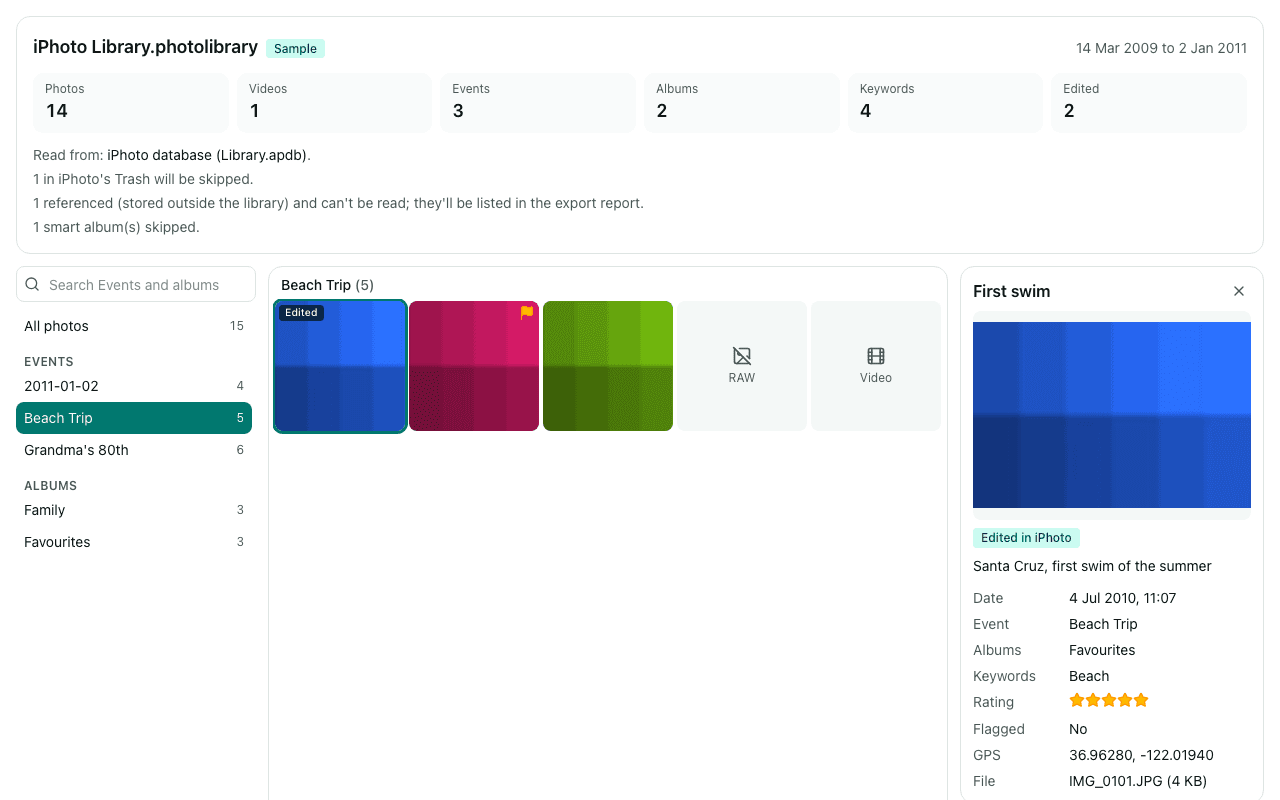
On Windows, an iPhoto library is just a folder full of oddly named subfolders, and no Windows app reads it. Choose it here instead: you'll see your Events, albums and photos, and can copy them into normal folders named after each Event.
Drop your iPhoto Library folder here
Read in this browser tab. Nothing is uploaded.
On a Mac? Drag the library here from Finder (Pictures folder).
Free: open and browse any library, and export up to 200 photos per library. Nothing is uploaded.
How to open an iPhoto library on a Windows PC
Get the library onto a drive Windows can read
Copy “iPhoto Library” from the old Mac to a USB drive formatted as exFAT (FAT32 can't hold files over 4 GB), or to a shared network folder. On Windows it shows up as a normal folder.
Choose the library folder
In Chrome or Edge, click “Choose library folder” above and pick the “iPhoto Library” folder itself (not a folder inside it). If you pick a parent folder such as Pictures, Library Rescue looks two levels down and offers what it finds.
Export into a folder on your PC
Click Export, then pick an empty folder on your PC. Each Event becomes a folder like “2009-03-14 Grandma's 80th”, with the original photo files and an .xmp sidecar for each holding its title, caption, keywords and rating.
Chrome and Edge write straight into the folder you pick, and running the export again skips files that are already there, so a big library can be done in sittings. Firefox downloads ZIP files of up to 1 GB each instead.
What you'll see
Questions
Windows says the drive needs to be formatted. Can I still get the library off it?
That usually means the drive is Mac-formatted (HFS+ or APFS), which Windows can't read on its own. Don't format it. Either copy the library to an exFAT drive from a Mac first, or use a tool that lets Windows read Mac drives. Once the library folder is visible in File Explorer, Library Rescue can open it.
Which folder do I choose?
The one called “iPhoto Library” (sometimes “iPhoto Library.photolibrary”). Inside it you'd see folders such as Masters, Database and Thumbnails, or Originals and Modified on older libraries, and often a file called AlbumData.xml. If you pick the folder above it, Library Rescue offers the library it finds inside.
Does it work on a Chromebook?
Yes. ChromeOS uses Chrome, so you can choose the library folder from a USB drive in the Files app and export into a folder on the Chromebook or a second drive. Unlike Windows, a Chromebook can read older Mac-formatted (HFS+) drives, read-only, according to Google's help; APFS drives aren't on its list. Our Chromebook guide has the steps.
How long does a big library take to open?
Only the library's database is read when it opens, not the photos, so even a library of hundreds of GB opens quickly. In our test with a synthetic 100,000-photo library, Chrome showed the summary in about 16 seconds. Exporting takes as long as copying the files to your disk.
Are my photos uploaded?
No. The library is read inside this browser tab on your own computer, and the export is written straight to your disk. No photo, file name, caption, keyword or location is sent to us. We only log anonymous counts, such as that a library with between 1,001 and 10,000 photos was opened.
Is it free?
Opening and browsing are free with no limit, and you can export up to 200 photos per library for free. Unlimited export isn't available yet; when you reach the limit, the banner has a link to be told when it is.