Open an old iPhoto library without the Library Upgrader
Libraries from iPhoto '08 and earlier had to go through Apple's iPhoto Library Upgrader before Photos would take them, and the Upgrader is a 32-bit app that doesn't run on macOS Catalina or later. Library Rescue skips that step: it reads the library's own catalogue in your browser and copies the photos out into Event folders.
Drop your iPhoto Library folder here
Read in this browser tab. Nothing is uploaded.
On a Mac? Drag the library here from Finder (Pictures folder).
Free: open and browse any library, and export up to 200 photos per library. Nothing is uploaded.
How to open an iPhoto '08 or older library today
Find the library
It's usually called “iPhoto Library” in the old Mac's Pictures folder, on a backup drive, or in a Time Machine backup. Inside it you'll typically see Originals and Modified folders and a file called AlbumData.xml.
Drag it onto the box above
On a Mac, drag the library from Finder (or use Show Package Contents and drag what's inside). On Windows or a Chromebook, click “Choose library folder” in Chrome or Edge and pick the “iPhoto Library” folder.
Export your Events into folders
Each Event (iPhoto's “rolls” in older versions) becomes a folder with its original photos, plus an .xmp sidecar per photo for title, caption, keywords and rating where the library recorded them.
These older libraries keep their Events and albums in AlbumData.xml, which Library Rescue reads. If that file is missing or damaged, it still lists the photos in the Originals folder, grouped by year and roll, so you can get them out.
What you'll see
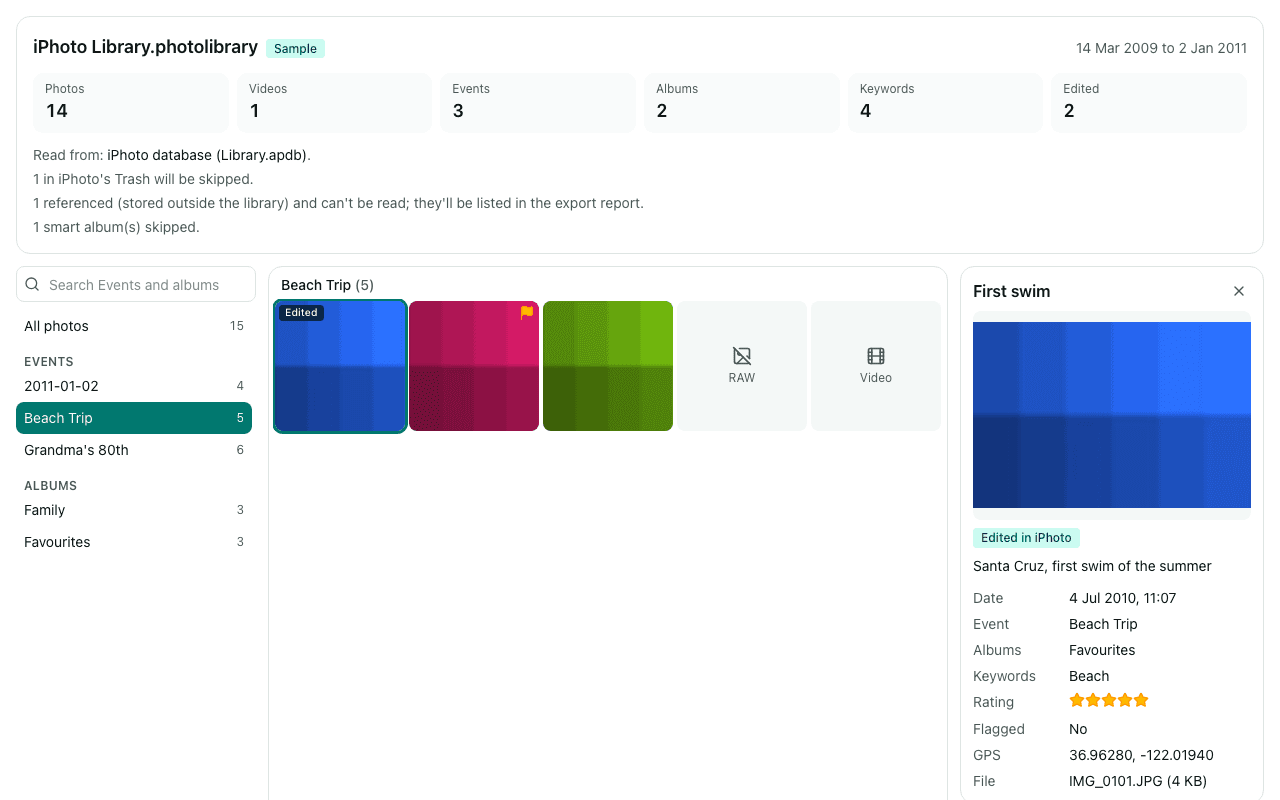
Questions
Why won't the iPhoto Library Upgrader run?
It's a 32-bit app, and macOS Catalina and later only run 64-bit apps. On Apple's forums, Mojave is named as the last macOS it runs on. Without it, current versions of Photos won't take a library from iPhoto '08 or earlier.
How do I know which iPhoto version my library is from?
Look inside it (Show Package Contents on a Mac). An Originals folder and AlbumData.xml with no Masters folder usually means iPhoto '08 or earlier. A Masters folder and a Database folder with an apdb folder inside means iPhoto 9 ('11), which Library Rescue also opens.
Do I still need an old Mac?
Not to get your photos out: Library Rescue runs in Chrome, Edge, Safari or Firefox on any current computer. If you want the library merged into Apple Photos with its albums, you'd still need the Upgrader on a Mac running Mojave or earlier, followed by Photos on Monterey or earlier.
What about libraries from iPhoto 5 or earlier?
Very old libraries keep their photos in year, month and day folders instead of an Originals folder, and Library Rescue hasn't been built for that layout. If it doesn't open, the photo files in those dated folders can be copied out directly. Please send the “Copy diagnostics” text to info@museeb.tech so we can look at adding it.
Are my photos uploaded?
No. The library is read inside this browser tab on your own computer, and the export is written straight to your disk. No photo, file name, caption, keyword or location is sent to us. We only log anonymous counts, such as that a library with between 1,001 and 10,000 photos was opened.
Is it free?
Opening and browsing are free with no limit, and you can export up to 200 photos per library for free. Unlimited export isn't available yet; when you reach the limit, the banner has a link to be told when it is.