Move an iPhoto library to digiKam
digiKam has no iPhoto importer, and copying the library's Masters folder gets you date folders without your Events, keywords or ratings. Export the library here instead: each Event becomes a folder, which digiKam shows as an album, and every photo gets an XMP sidecar that digiKam can read.
Drop your iPhoto Library folder here
Read in this browser tab. Nothing is uploaded.
On a Mac? Drag the library here from Finder (Pictures folder).
Free: open and browse any library, and export up to 200 photos per library. Nothing is uploaded.
How to move an iPhoto library to digiKam
Open the library here
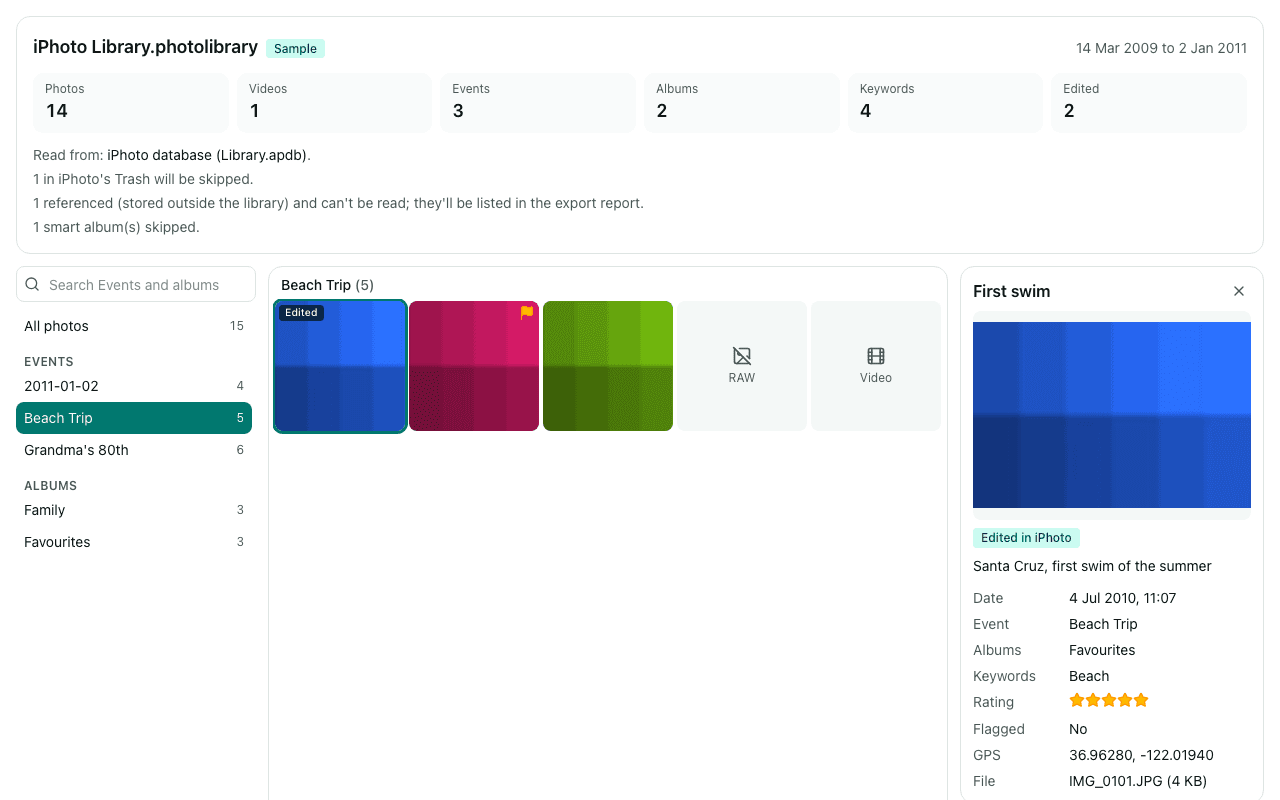
On Windows or Linux, copy “iPhoto Library” to a drive you can read and click “Choose library folder” in Chrome or Edge. On a Mac, drag the library onto the box above. The summary shows the Events, albums and keywords that were found.
Export Events as folders, with sidecars
Keep “Events as folders” and “XMP sidecars” on, and export into a folder where you want the photos to live. Sidecars are named like IMG_0001.JPG.xmp, which is digiKam's default sidecar naming.
Turn on sidecars in digiKam, then add the folder
In digiKam's settings, open Metadata, then the Sidecars tab, and tick “Read from sidecar files” before digiKam scans the export. Leave “Sidecar file names are compatible with commercial programs” off. Then add the export folder as a collection.
digiKam's documentation says that with “Read from sidecar files” on, it reads the sidecar and ignores metadata stored inside the photo. The sidecars carry the date and GPS position, but details only stored in the photo, such as the camera model, may not show while it's on. Try one Event folder first and check it looks right.
What you'll see
Questions
Do my iPhoto albums come across, or only Events?
Both, in different ways. Events become folders, which digiKam shows as albums. iPhoto albums can overlap (one photo can be in several), so instead of copying photos into several folders, each sidecar lists the photo's albums as hierarchical keywords under “iPhoto Album”, and its Event under “iPhoto Event”. In digiKam these show up as a tag tree you can filter by. If you'd rather have one folder per album, choose “Albums as folders” before exporting; a photo in two albums is then copied into both.
Which details does digiKam pick up from the sidecars?
Each sidecar holds the photo's title, caption, keywords, star rating, date taken and GPS position, and digiKam reads XMP for all of these: captions from the description field, ratings as stars and keywords as tags. Exactly what is shown depends on your digiKam version and metadata settings. Face names aren't exported; digiKam's own face recognition can find people again.
I'm on Windows and the library came from an old MacBook or CDs. Does that work?
Yes. Copy the library folder to a drive Windows can read, then choose it in Chrome or Edge. If you see files such as iPhotoMain.db and AlbumData.xml but no Masters folder, it's an older library (around iPhoto '08 or '09); Library Rescue reads its Events and albums from AlbumData.xml.
What about iphoto2xmp or osxphotos?
Both are free command-line tools that also write XMP sidecars for digiKam. iphoto2xmp is a Ruby script (now unmaintained) that reads iPhoto's database, runs on Linux too, and also exports face names and edited versions. osxphotos is a Mac tool with limited iPhoto support. If you're comfortable in a terminal and need faces or edits, try them. Library Rescue needs no install.
Are my photos uploaded?
No. The library is read inside this browser tab on your own computer, and the export is written straight to your disk. No photo, file name, caption, keyword or location is sent to us. We only log anonymous counts, such as that a library with between 1,001 and 10,000 photos was opened.
Is it free?
Opening and browsing are free with no limit, and you can export up to 200 photos per library for free. Unlimited export isn't available yet; when you reach the limit, the banner has a link to be told when it is.