Get your photos out of an old iPhoto library.
For anyone with an iPhoto library their new Mac, Windows PC or Chromebook can't open: see your Events and albums, then export the photos into named folders with keywords and ratings kept. Everything runs in your browser.
Drop your iPhoto Library folder here
Read in this browser tab. Nothing is uploaded.
On a Mac? Drag the library here from Finder (Pictures folder).
Free: open and browse any library, and export up to 200 photos per library.
See every Event before you export
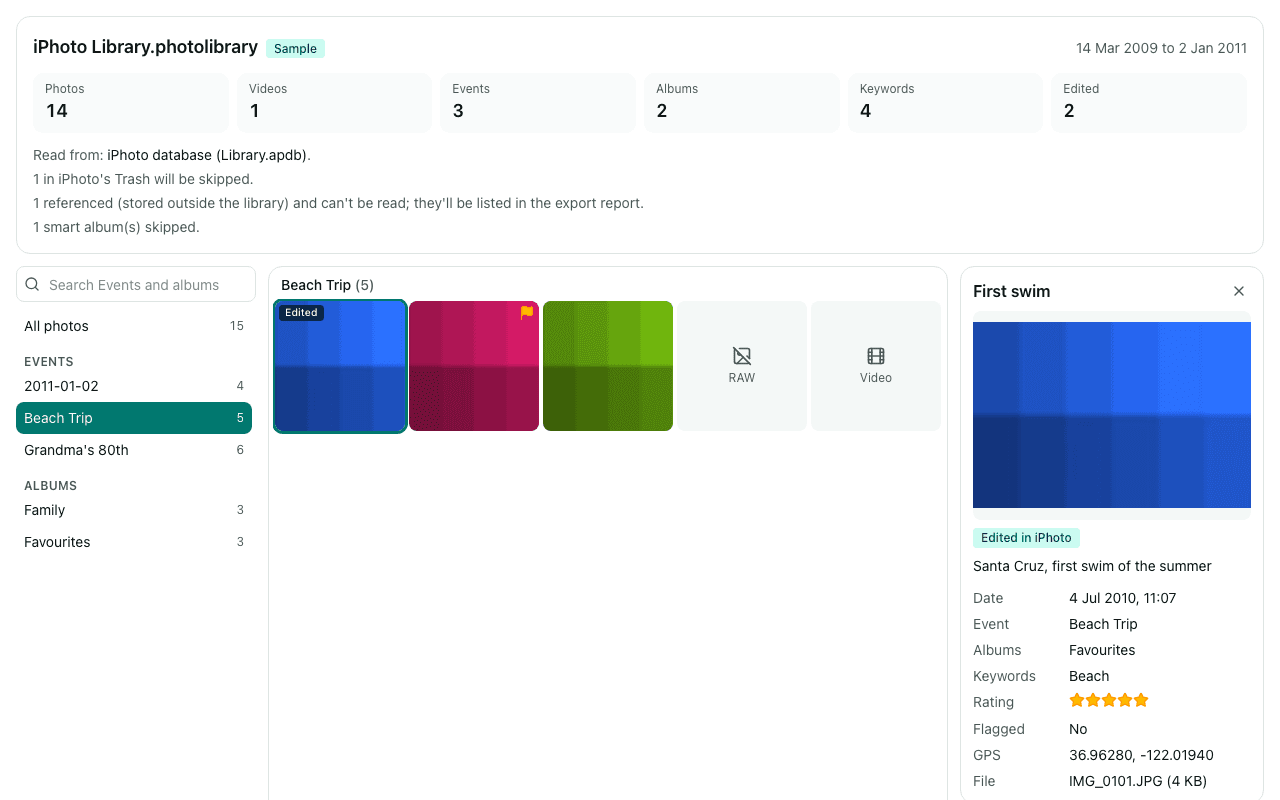
This is the sample library open in Library Rescue: Events and albums on the left, thumbnails in the middle, a photo's title, caption, keywords and rating on the right. Click “Try a sample” above to try it yourself.
Why Library Rescue
Keeps your Events
Apple's import drops them; we turn them into folders, like “2009-03-14 Grandma's 80th”. Titles, captions, keywords and star ratings go into XMP sidecars next to each photo.
Works on Windows, ChromeOS and new Macs
No old Mac needed. Open the library from a USB drive, a copied folder or a backup, in Chrome, Edge, Safari or Firefox.
Your photos never leave your computer
Nothing is uploaded. The library is read inside this browser tab, and the export is written straight to your own disk.
How it works
Find your iPhoto Library
It's usually in the Pictures folder of the old Mac, or on the drive or backup you copied it to. It may be called “iPhoto Library” or “iPhoto Library.photolibrary”.
Drop it here
Drag the library onto the box above, or click “Choose library folder”. You'll see your Events, albums and photos before anything is copied.
Export into folders
Pick a folder (Chrome and Edge) or download ZIP files (other browsers). Each Event becomes a folder, with the original files and an XMP sidecar for each.
Questions
Are my photos uploaded?
No. Library Rescue reads the library inside your browser tab and writes the export to your own computer. No photo, file name, caption or location is sent to us. Once a library is open you can even disconnect from the internet, and browsing and exporting keep working.
My Mac shows the library as a single file. What do I do?
Drag it onto the drop box anyway; the browser may accept it as a folder. If it doesn't, right-click the library in Finder, choose Show Package Contents, select everything inside (Cmd-A) and drop that here instead.
Will it keep Events, albums, keywords, ratings and captions?
Yes. Events (or albums, if you prefer) become folders, and each photo gets an XMP sidecar with its title, caption, keywords, star rating, date and GPS. Immich reads these sidecars, and so does digiKam once reading from sidecars is turned on. Lightroom Classic only reads sidecars for RAW files (named IMG_0001.xmp), so it won't pick up these details for JPEGs. Google Photos ignores sidecars: the photos and the dates stored inside them carry over, but not captions or keywords.
Can it put the photos back into Apple Photos with my albums?
No, it exports to ordinary folders. To merge an old iPhoto library into Apple Photos with albums intact, a Mac app such as PowerPhotos is the better fit; you can also import the exported Event folders into Photos with File > Import.
My library is on a Time Machine backup or a Mac drive, and I'm on Windows.
Windows can't read Mac-formatted (HFS+ or APFS) drives on its own, so it needs extra software to see the files, or you can copy the library to a USB stick or a shared folder from a Mac first. On a Mac, open the backup drive in Finder and look in Backups.backupdb, then your Mac's name, a date, and the Pictures folder.
It didn't open my library. What now?
Click “Copy diagnostics” (it holds only the library type, the top-level folder names and counts, never your file names) and email it to info@museeb.tech, so we can see what's different about your library.
Step-by-step guides
Your old Events are still in there.
Open the library, check what's inside, and export the photos into folders you can keep.
Open your library