Open an iPhoto library on a Chromebook
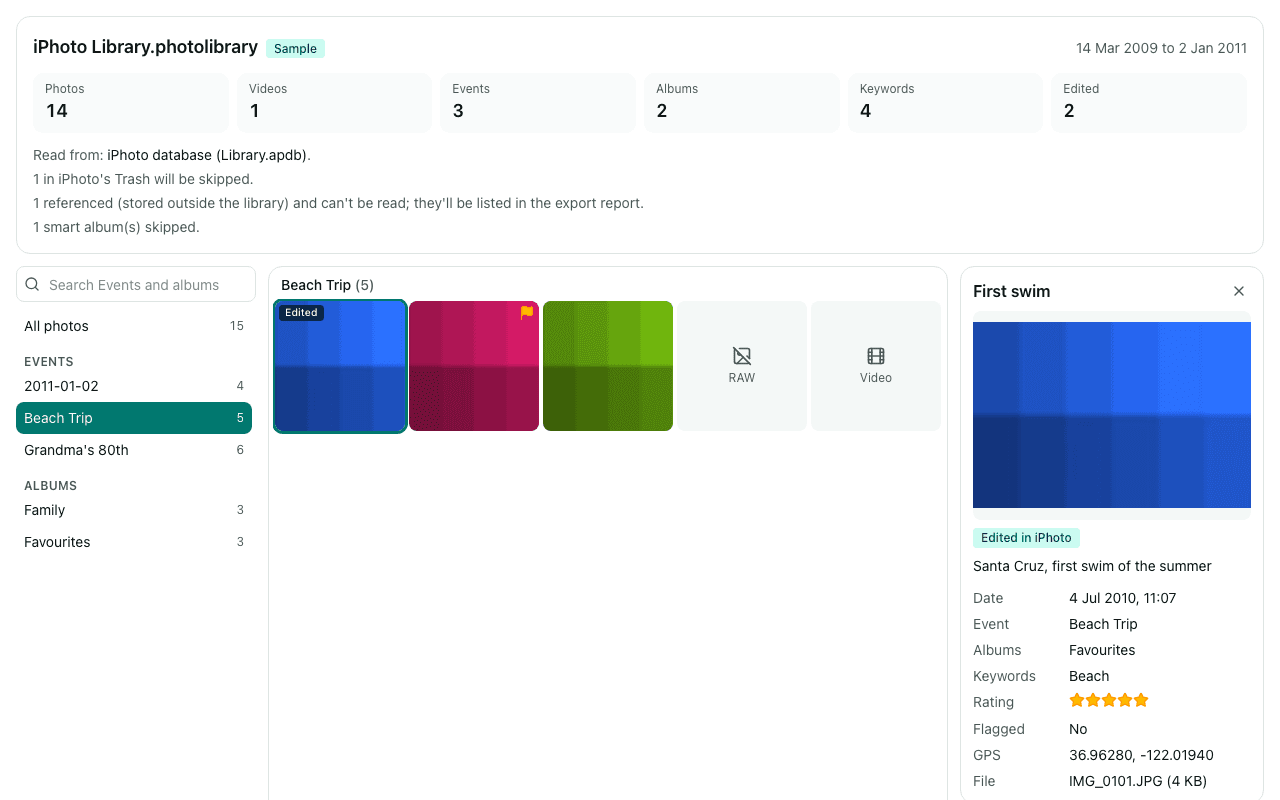
ChromeOS has no app that reads an iPhoto library: in the Files app it's just a folder of oddly named subfolders. Choose it here in Chrome instead. You'll see your Events, albums and photos, and can copy them into normal folders named after each Event, ready for Google Photos or a backup drive.
Drop your iPhoto Library folder here
Read in this browser tab. Nothing is uploaded.
On a Mac? Drag the library here from Finder (Pictures folder).
Free: open and browse any library, and export up to 200 photos per library. Nothing is uploaded.
How to open an iPhoto library on a Chromebook
Plug in the drive with the library
Google's Chromebook help lists Mac OS Extended (HFS+) among the drive formats it reads, so an older Mac-formatted drive may open directly in the Files app (read-only). exFAT, FAT32 and NTFS drives work too. APFS, the format of newer Mac drives, isn't on Google's list: copy the library to an exFAT drive from a Mac first.
Choose the library folder in Chrome
Click “Choose library folder” above and pick the folder called “iPhoto Library” (or “iPhoto Library.photolibrary”) itself, not a folder inside it. If you pick the drive or a parent folder, Library Rescue looks two levels down and offers what it finds.
Export into a folder you can write to
Click Export and pick an empty folder in My files or on a second drive. A Mac-formatted drive is read-only on a Chromebook, so the export can't go back onto it. Each Event becomes a folder like “2009-03-14 Grandma's 80th”, with the original photos and an .xmp sidecar for each.
Chromebooks often have little free storage. Choose a few Events at a time in the export panel, or export to a second USB drive formatted as exFAT. Running the export again into the same folder skips the files that are already there, so a big library can be done in sittings.
What you'll see
Questions
My Chromebook doesn't show the drive, or offers to format it. What now?
Don't format it: that erases the photos. The drive is probably APFS (newer Macs) or an encrypted Mac drive, which ChromeOS can't read. Copy the “iPhoto Library” folder to an exFAT USB drive from any Mac that can read it, then plug that into the Chromebook.
Can I export back onto the same Mac drive?
No. Google's help says journaled HFS+ drives, the usual Mac OS Extended format, are read-only on a Chromebook, so Library Rescue can read the library from it but can't write the export there. Pick a folder in My files or on a second drive that's formatted as exFAT.
How do I get the photos into Google Photos from a Chromebook?
Export first, then upload the export folder at photos.google.com or with the Google Photos app. Google Photos doesn't read the .xmp sidecars and doesn't turn folders into albums, so choose “Albums as folders” before exporting if you want to recreate albums by hand. Our Google Photos guide has the details.
Do I need Linux on the Chromebook?
No. Library Rescue runs in Chrome. The command-line scripts that export iPhoto libraries need Python or Ruby, which on a Chromebook means turning on the Linux environment; this tool doesn't.
Are my photos uploaded?
No. The library is read inside this browser tab on your own computer, and the export is written straight to your disk. No photo, file name, caption, keyword or location is sent to us. We only log anonymous counts, such as that a library with between 1,001 and 10,000 photos was opened.
Is it free?
Opening and browsing are free with no limit, and you can export up to 200 photos per library for free. Unlimited export isn't available yet; when you reach the limit, the banner has a link to be told when it is.