Move an iPhoto library to Google Photos
Uploading an iPhoto library straight to Google Photos doesn't work: it's a maze of folders with no albums. Export it here into one folder per album (or per Event), then upload each folder to Google Photos as an album of the same name.
Drop your iPhoto Library folder here
Read in this browser tab. Nothing is uploaded.
On a Mac? Drag the library here from Finder (Pictures folder).
Free: open and browse any library, and export up to 200 photos per library. Nothing is uploaded.
How to move an iPhoto library to Google Photos
Open the library here
Drag the library onto the box above, or click “Choose library folder”. On this page the export starts with “Albums as folders”; switch to “Events as folders” if you organised by Event instead.
Export into folders
Each album becomes a folder, and photos in no album go into “Not in an album”. A photo in two albums is copied into both folders, so each album is complete.
Upload each folder as an album
In Google Photos on the web, create an album with the folder's name, choose to add photos from your computer, and select the photos in that folder. Repeat for each folder you want as an album.
Google Photos reads each photo's date from the date stored inside it, so camera photos land in the right place in your timeline; scans or files without a stored date may show up under the day you upload them. It ignores the .xmp sidecars, so titles, captions, keywords and ratings don't carry over; keep the exported folders if you want those.
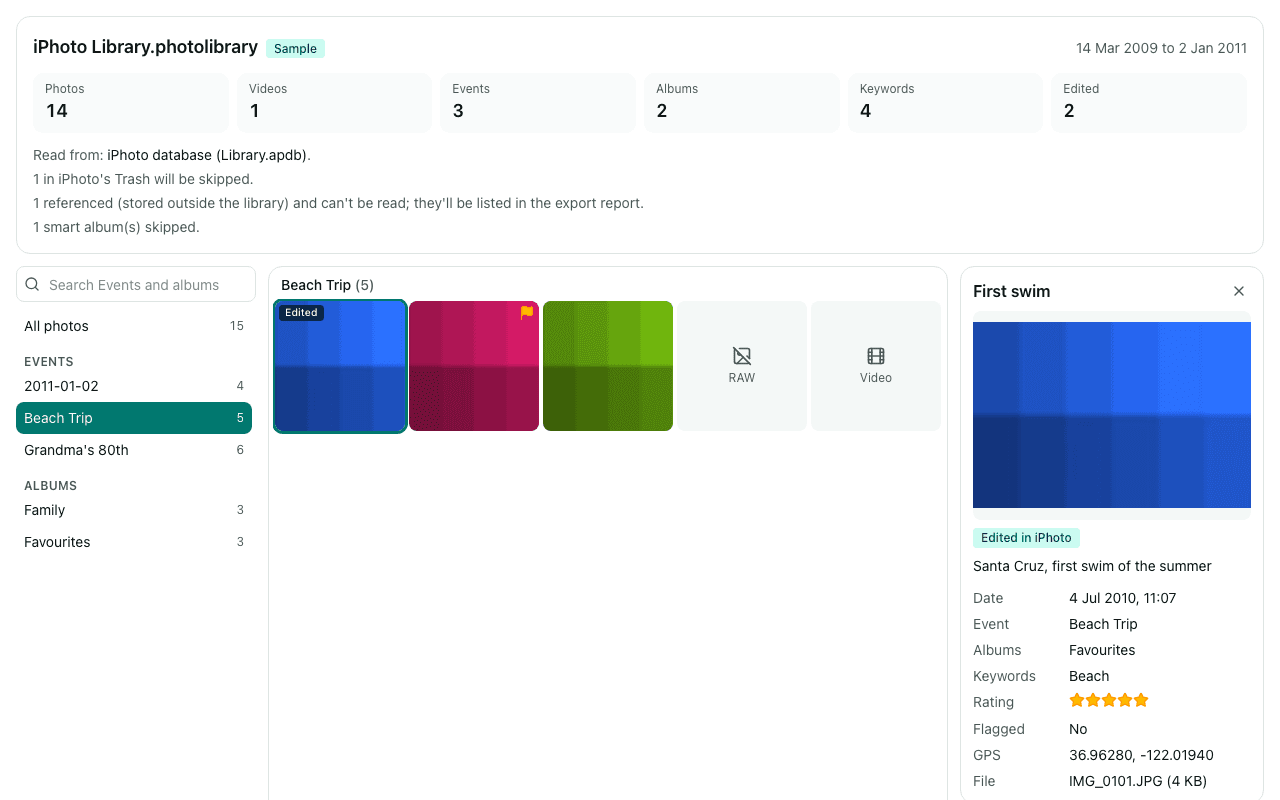
What you'll see
Questions
Will my captions and keywords show up in Google Photos?
No. Google Photos doesn't read XMP sidecar files, which is where Library Rescue puts titles, captions, keywords and ratings. The photos and their dates do carry over. If those details matter, keep the exported folders as a backup or use an app that reads sidecars, such as Immich or digiKam.
Should I export by album or by Event?
By album if you made albums in iPhoto and want the same albums in Google Photos. By Event if you mostly used Events (iPhoto created one per import), since every photo belongs to exactly one Event and nothing is copied twice.
Can't I just upload the iPhoto Library folder?
You'd get thumbnails and preview copies mixed in with your originals, and no albums. Library Rescue copies only the originals, skips photos you'd moved to iPhoto's Trash, and sorts them into folders named after your albums or Events.
Does Google Photos keep the original quality?
That depends on your Google account's upload quality setting, not on Library Rescue. The exported files are the originals, copied byte for byte from the library.
Are my photos uploaded?
No. The library is read inside this browser tab on your own computer, and the export is written straight to your disk. No photo, file name, caption, keyword or location is sent to us. We only log anonymous counts, such as that a library with between 1,001 and 10,000 photos was opened.
Is it free?
Opening and browsing are free with no limit, and you can export up to 200 photos per library for free. Unlimited export isn't available yet; when you reach the limit, the banner has a link to be told when it is.