Photos can't open your iPhoto library?
If Photos tells you an old iPhoto library can only be opened with macOS Monterey or earlier, nothing is lost: the library is intact, Photos just no longer converts it. You can still see what's inside here, in your browser, and copy the photos out into folders named after your Events.
Drop your iPhoto Library folder here
Read in this browser tab. Nothing is uploaded.
On a Mac? Drag the library here from Finder (Pictures folder).
Free: open and browse any library, and export up to 200 photos per library. Nothing is uploaded.
What to do when Photos won't open an iPhoto library
Don't delete or rebuild the library
The message means this version of Photos can't convert the library, not that it's damaged. Leave it as it is, and if it's your only copy, copy it to a second drive before trying anything.
Decide where the photos should end up
Back into Apple Photos with albums: the options below (an older Mac, or a Mac app that merges libraries) fit best. Into folders, Google Photos, Immich or a Windows PC: export them here.
Open it here and export
Drag the library onto the box above (or use Show Package Contents and drag what's inside). Check the Events and albums, then export: each Event becomes a folder with its original photos and an .xmp sidecar for title, caption, keywords and rating.
Library Rescue reads the library and never changes it. It's built from published notes on the iPhoto format and tested with synthetic libraries, so if yours doesn't open, “Copy diagnostics” gives us its structure (no names or photos) so we can fix it.
What you'll see
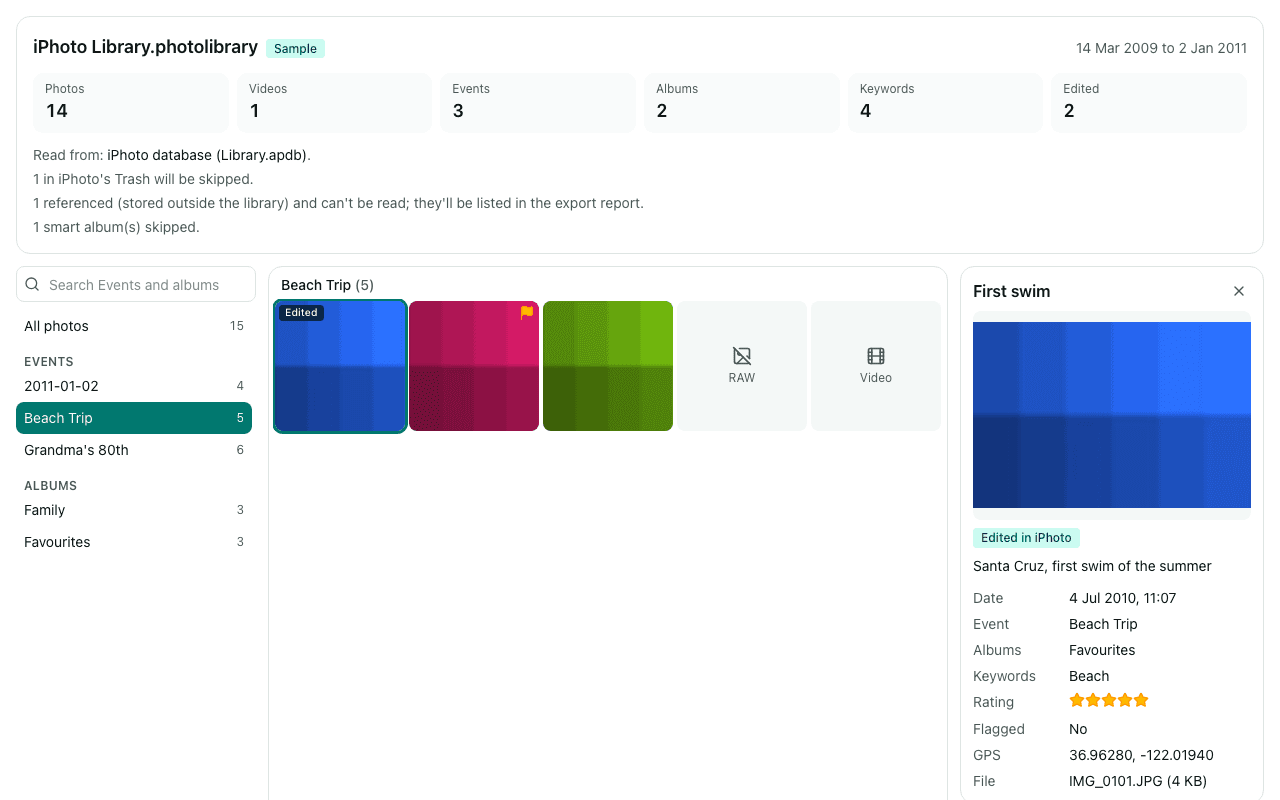
Questions
Why does Photos say the library needs macOS Monterey or earlier?
Converting iPhoto and Aperture libraries into Photos libraries stopped working in macOS Ventura. On Apple's forums, Monterey is named as the last version whose Photos could still convert one. The library itself is fine; it's the conversion that's gone.
What are my options?
Four, roughly: use File > Import in Photos and select the library (you get the photos but lose Events, albums, keywords, titles and edits); convert it on a Mac running Monterey or earlier and copy the result over; use a paid Mac app such as PowerPhotos to merge it into Photos with Events turned into albums; or export it here into folders with sidecars, on any computer.
Which option should I pick?
If you want everything back inside Apple Photos with your albums, an older Mac or PowerPhotos is the better fit; Library Rescue doesn't write into Photos. If you're moving to folders, Google Photos, Immich, digiKam or a Windows PC, or just want a copy of everything in plain folders, export it here.
If I export here, can I still import into Photos later?
Yes. The export is ordinary folders of original photos, so you can drag any Event folder into Photos with File > Import. Photos won't read the sidecars or recreate albums, but the photos and their dates come in.
Are my photos uploaded?
No. The library is read inside this browser tab on your own computer, and the export is written straight to your disk. No photo, file name, caption, keyword or location is sent to us. We only log anonymous counts, such as that a library with between 1,001 and 10,000 photos was opened.
Is it free?
Opening and browsing are free with no limit, and you can export up to 200 photos per library for free. Unlimited export isn't available yet; when you reach the limit, the banner has a link to be told when it is.